Recordings pile up on your phone and nobody goes back to them. Last week's lecture, an hour-long call with a client, a seven-minute voice message from a colleague. Replaying takes ages, and the one sentence you need is usually somewhere in the middle.
A transcript turns the recording into text. You can skim it, search it for a word, copy a quote and send it to your team. Below: how to start using Slovo v slovo, twelve ideas for different jobs, and what you get at the end.
Quick answer: forward the recording to @slovo_vslovo_bot or upload it to the web dashboard and press "Расшифровать" (Transcribe). Usually within a few minutes you get text with timestamps plus TXT, DOCX and SRT files. From the text you can make notes, key points, a task list or a set of quotes. Free: 3 recordings a month, up to 120 minutes each. The bot and the dashboard are in Russian, and the main recognition language is Russian.
How to start: the Telegram bot or the web dashboard
One service, two ways in. The bot is handier on a phone: forward the recording and get on with your day. The dashboard is better for large files and for working with the text: it has search, a player next to the text, editing and the interactive digest. If you sign in to the dashboard with Telegram, the account is shared: transcripts from the bot show up on the site and vice versa.
In Telegram
- Open @slovo_vslovo_bot.
- Send or forward a recording: a voice message, a video note, an audio or video file, or a link to YouTube, VK, Rutube or Yandex.Disk.
- The bot asks whether to transcribe this recording. Press "Расшифровать" (Transcribe).
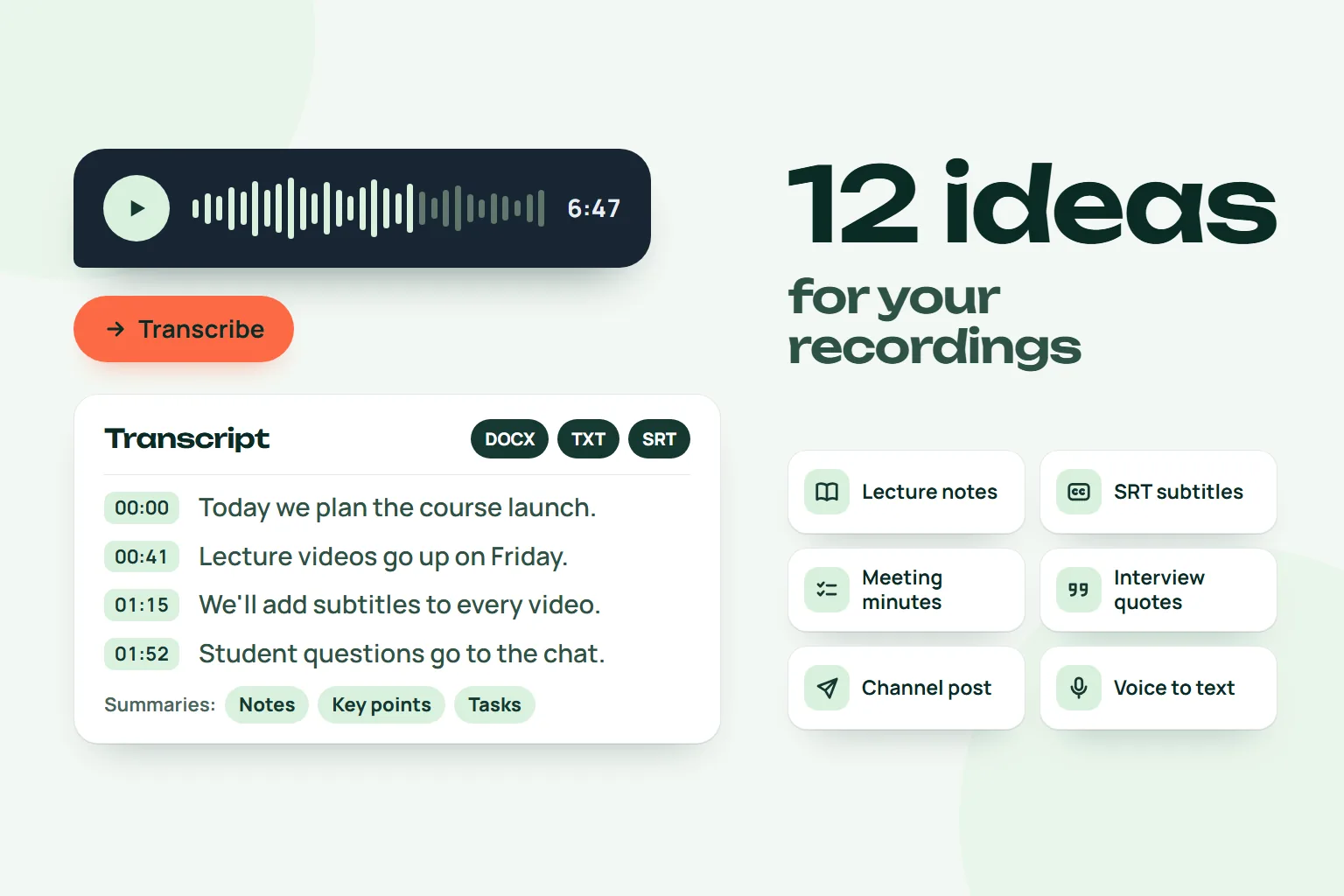
- The text arrives in the chat with DOCX, TXT and SRT files. Below them is the "Выжимки" (Summaries) button: notes, key points, tasks and more.
Telegram lets bots receive files up to 20 MB. For a heavier recording, upload it to Yandex.Disk and send the link, or use the web dashboard.
In the browser
- Open the dashboard and sign in with Telegram or email.
- On the "Новая расшифровка" (New transcript) page, drag a file into the window or press "Выбрать файлы" (Choose files). mp3, m4a, wav, ogg, opus, mp4, mov, mkv and webm all work. You can paste a link instead.
- Pick the recording language. Turn on "keep the recording for listening" if you want to play it next to the text.
- Press "Расшифровать". You can close the page: the finished transcript appears in your list.
Every step with pictures: how to transcribe audio and video in your browser.
12 ideas for your recordings
Twelve scenarios for different jobs. For each: what to send, which button to press and where it can let you down.
Students
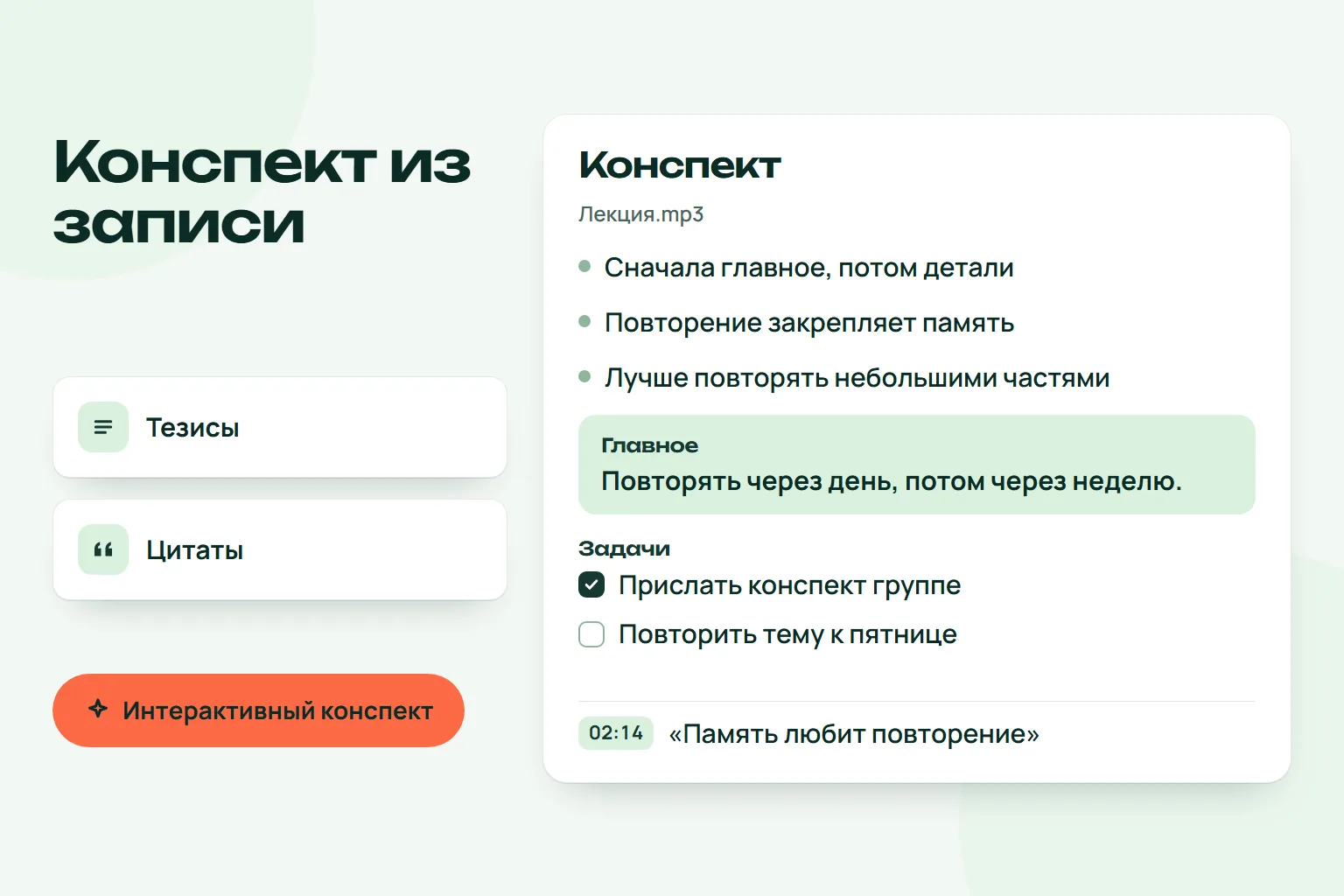
1. Lecture notes from a video. Your teacher posted a recording of the class, or you recorded the lecture on your phone. Send the file or a link to the video. In the dashboard, open the finished transcript and press "Интерактивный конспект" (Interactive digest). You get the gist, topic blocks with timestamps, and questions with answers. Click a timestamp and the player starts the lecture from that spot. More on studying: how to transcribe a lecture.
2. Self-test questions before an exam. The "Questions and answers" summary writes questions on the topic of the recording and answers them. Cover the answers with your hand and test yourself. The answers are written by an AI model from the transcript, so check doubtful points against the lecture or the textbook.
Teachers
3. Text and subtitles for your course. One lecture recording gives you three things. Text for handouts: the Word file is easy to edit. A table of contents with timestamps to put under the video. And SRT subtitles: with them people can watch without sound, and students who are hard of hearing can follow the video more easily.
Journalists
4. Interviews and exact quotes. An hour-long conversation becomes searchable text. The "Quotes" summary picks the strongest lines and shows when each was said. Before you publish, check the quote against the audio: the timestamp tells you which second to look at. On paid plans you can turn on speaker separation, and lines are labelled "Speaker 1", "Speaker 2". How to prepare such texts: interview transcription.
HR and recruiters
5. Interviews without frantic notes. Tell the candidate you are recording and just talk. After the call, the "Brief" summary gives you a paragraph for the candidate card, and "Quotes" keeps their answers word for word. With five candidates, comparing texts is easier than remembering who said what.
Researchers
6. In-depth interviews and focus groups. Analysis needs a verbatim text. Download the DOCX and code it in Word or in your own analysis tool. Search across the transcript quickly finds where participants mentioned a topic. One caveat: in focus groups people talk over each other, and those spots have more errors. Replay them by timestamp.
Bloggers and creators
7. Subtitles from a video. Send the clip and download the SRT file. YouTube and most video editors accept it, for example DaVinci Resolve and Premiere Pro. A clip with subtitles can be watched on the metro without headphones. Before uploading, check brand names and rare terms: that is where recognition slips most often.
8. A post and a video description. The "Post" summary writes a draft post for a Telegram channel based on the recording. The table of contents gives sections with timestamps: tidy the format, paste them into the YouTube description, and viewers can jump straight to the part they need. Rewrite the draft post in your own words instead of publishing it as is.
Teams and calls
9. Meeting minutes without manual notes. Record the call with the built-in recorder in Zoom, Telemost or Google Meet and send the file. The "Tasks and agreements" summary collects who has to do what and by when, if a deadline was mentioned. "Brief" works for a follow-up email. How to put the result together: meeting minutes from a recording.
10. Digests in a Telegram work group. If discussions happen in a group, add the bot there and type /itogi: it will put together a digest of the conversation. Without a plan a group gets 3 digests a month. The Chat manager page shows what else the bot can do in groups.
Voice messages
11. Turn a voice message into text. A colleague sent a seven-minute voice message and you are in a meeting. Forward it to the bot and read it without turning on the sound. Video notes work the same way. More: voice message to text in Telegram.
12. Dictate your thoughts and read them later. Many people find it easier to say an idea out loud than to type it. Dictate a draft email, an article outline or a to-do list on a walk and send it to the bot. The text will be conversational, with repetitions, but nothing you said gets lost. The "Key points" summary turns it into a neat list.
What you get
| What | Where | What for |
|---|---|---|
| Text with timestamps | in the bot chat and in the dashboard | read, search, copy |
| TXT | file next to the text | plain text for notes and any app |
| DOCX | file, "Документ Word" in the dashboard | edit, print, send |
| SRT | file, "Субтитры" in the dashboard | load into a player or video editor |
| Summaries | "Выжимки" button in the bot, AI summaries block in the dashboard | notes, brief, key points, table of contents, tasks and agreements, quotes, questions and answers, post |
| Interactive digest | in the dashboard | gist, blocks, tasks and quotes that jump to the right moment of the recording |
Summaries are written by an AI model from the transcript text. By default it is a Russian model. You can choose another one in the settings, only with your separate consent. If you do not order summaries, the text is not sent to any AI model. How digests work in the dashboard: notes from a recording in the browser.
How to record for cleaner text
The quality of the text depends on the recording more than on how hard the topic is. These things get in the way most often:
- A distant microphone. A phone in a bag or at the far end of the table hears the room's echo, not the voice. Put it closer to the speaker.
- Background noise. Air conditioning, a coffee machine and music hurt more than you would think. If you can, close the window and turn the music off.
- Overlapping speech. When two people talk at once, some words get lost. In a meeting, agree not to interrupt each other.
- A call recorded with a phone next to the speakers. The built-in recorder in Zoom or Telemost is almost always cleaner.
- The wrong language. The main language of the service is Russian. If the recording is in English, choose the language explicitly: in the dashboard when uploading, in the bot under /settings.
- A recording that is too long. On the free plan one recording can be up to 120 minutes. If a lecture is longer, split the file into parts.
- A link that will not open. Sometimes a video site refuses to give the clip to our server. Then download the file and upload it to the dashboard.
Check names, amounts and dates against the recording. The dashboard has a player and a text editor for that.
What the service does not do
Transcription is automatic and can make mistakes, especially with noise, accents and overlapping speech. The service does not know speakers' real names: with speaker separation it labels them "Speaker 1", "Speaker 2", and you add the names yourself. Text does not carry intonation, so a joke on paper may read like a serious statement. Summaries are built from the transcript, so its errors carry over into the notes.
About your data: the original file is deleted right after transcription. The text is kept until you delete it.
How much it costs
The free plan gives 3 transcripts a month, up to 120 minutes each, and 3 summaries. Limits reset on the 1st. Speaker separation and larger volumes come with paid plans; their terms are on the home page under Pricing.
Questions and answers
How do I turn a voice message into text?
Forward the voice message or video note to @slovo_vslovo_bot and press "Расшифровать" (Transcribe). The text arrives in the same chat with DOCX, TXT and SRT files.
Can I make subtitles from a video?
Yes. Send the video to the bot or upload it to the dashboard, then download the SRT file. You can upload it to YouTube or open it in a video editor.
How do I get lecture notes from a video?
Transcribe the video, then press "Выжимки" (Summaries) in the bot or "Интерактивный конспект" (Interactive digest) in the dashboard. You get the gist of the lecture, topic blocks and questions for review.
How long does a transcript take?
Usually a few minutes. It depends on the length of the recording and how many recordings are in the queue. You can close the chat or the page: the bot sends the text on its own, and the dashboard shows it in your list.
How much does it cost?
3 transcripts a month are free, up to 120 minutes each. Paid plans are described on the home page.
Try it on your own recording
Send a voice message or a video to the bot and the text arrives right in the chat. The first minutes are free.
Transcribe in the bot