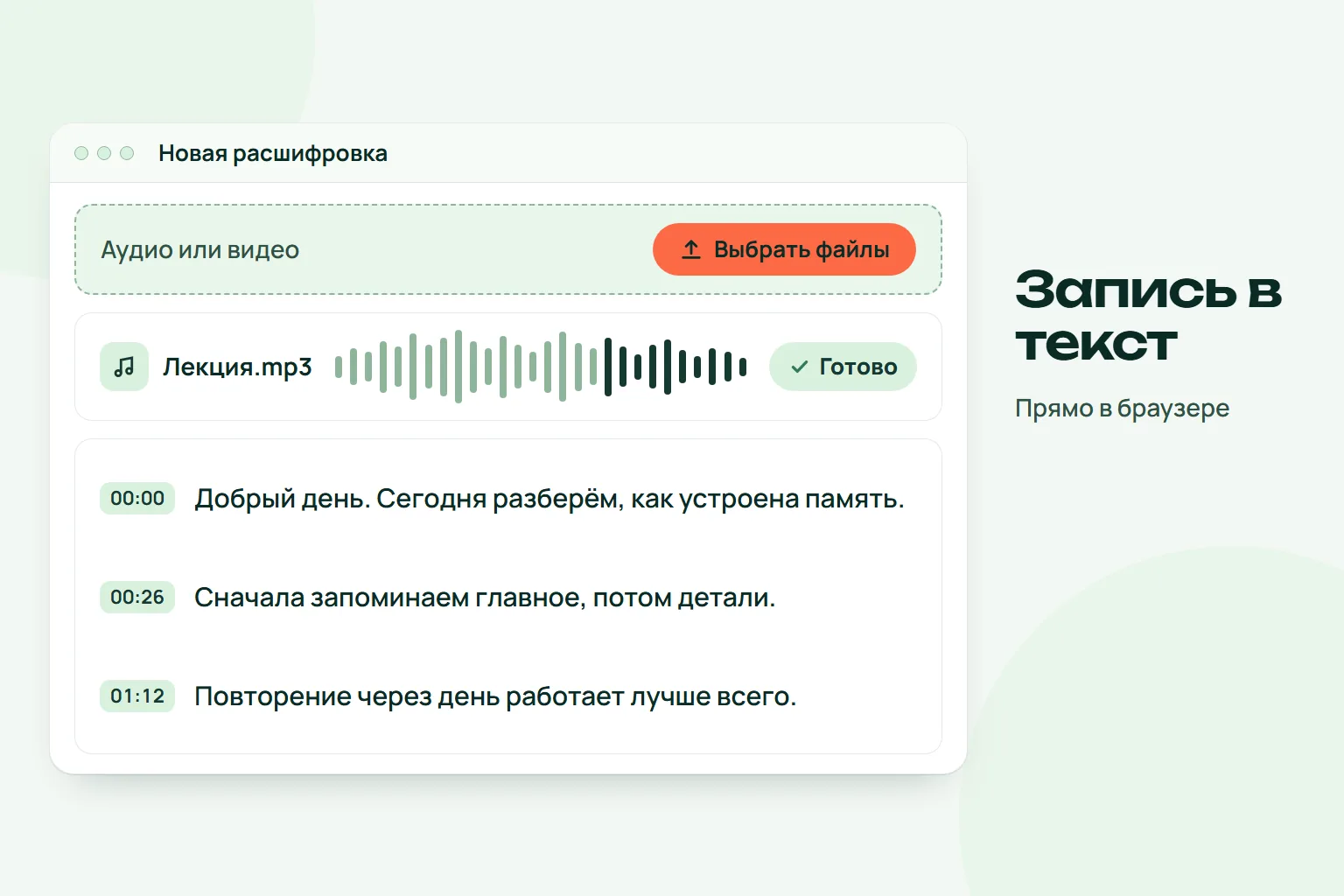
A transcript is raw text, and reading all of it is often not an option. You need the gist, the main points by section, tasks and quotes. The dashboard builds all of that from a finished transcript in one click.
Quick answer: open a transcript in the dashboard, and in the right-hand block of AI summaries press the interactive notes button or any other kind. In a minute or two the result appears as a separate tab. You can read it, copy it and download it. The interface is in Russian.
If you have not transcribed a recording yet, start with how to transcribe audio and video in your browser.
Which summaries exist
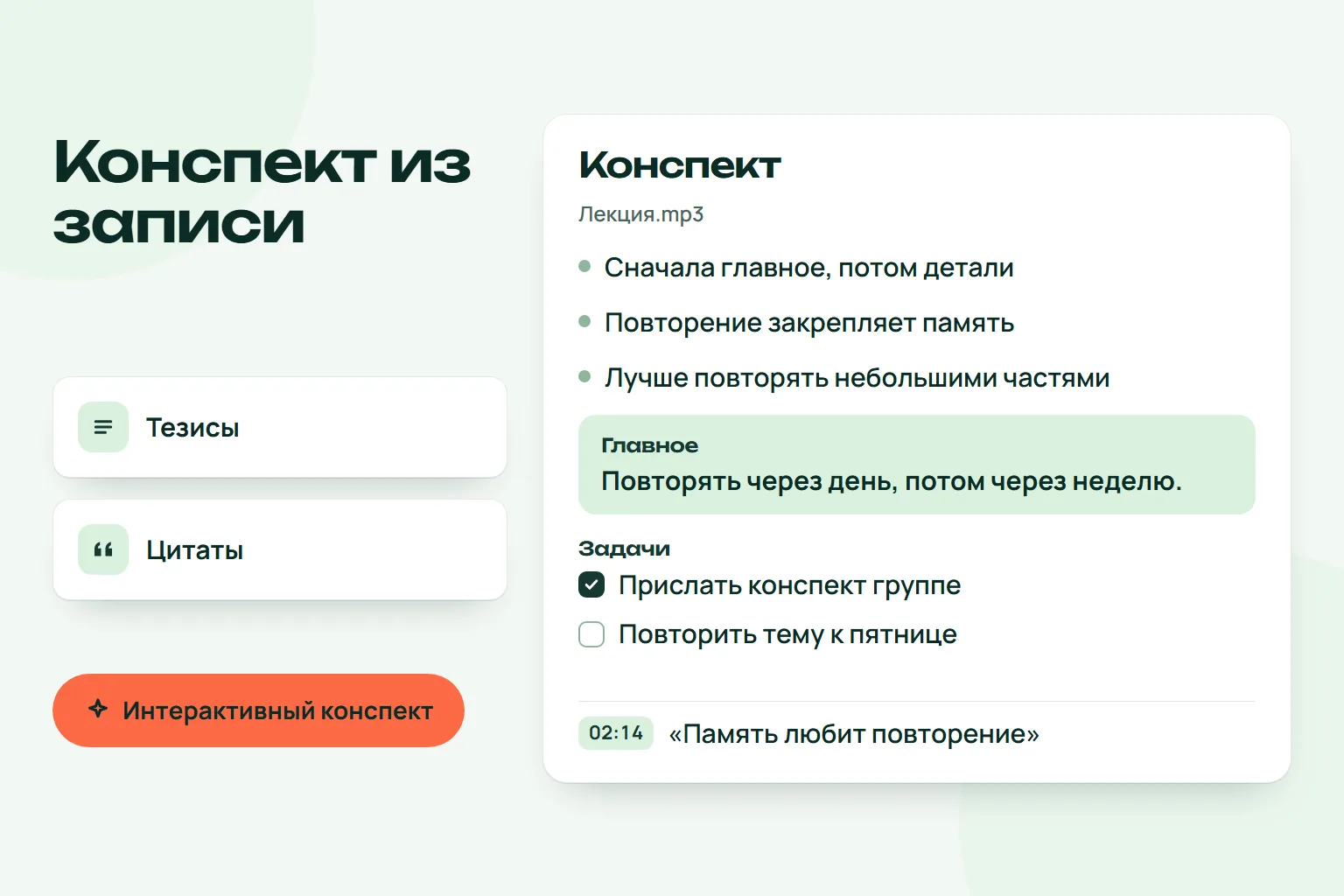
- Interactive notes. Gist, sections, tasks and quotes. Every moment opens in the recording.
- Notes. Short overview, main points by section, conclusions.
- Brief. One paragraph: what the recording was about and how it ended.
- Key points. A list of main ideas.
- Contents. Sections of the recording with timestamps.
- Tasks and agreements. Who must do what. Handy after meetings.
- Quotes. The strongest phrases with their time.
- Questions and answers. Questions on the topic and their answers.
- Post. A draft Telegram channel post based on the recording.
Inside the interactive notes
This is the main kind, usually ready in 1–2 minutes. It contains the short gist, sections that you can collapse, tasks and agreements, quotes, and questions with answers that expand on click. Time marks sit next to the sections: click one and the player starts from that moment, so you can check what was really said.
Listen next to the text
The player appears at the bottom if you enabled keeping the recording during upload. It has 15-second back and forward buttons, playback speed and volume. Timestamps in the transcript and marks in the notes work as links to the exact spot. The audio copy is kept for a limited time, shown on the page.
Edit, copy, download
- Fix the transcript with the edit button, then save.
- Copy buttons put the text on your clipboard for notes, email or a document.
- Search finds a word or name.
- The download block offers Word, text and subtitle files.
Which kind for what
- Lecture or webinar: interactive notes and key points to review the material.
- Meeting or call: tasks and agreements plus the brief, to send to participants. More: how to write meeting minutes.
- Interview: quotes with timestamps.
- Channel content: the post draft as a starting point.
Honest limits
Summaries are written by a neural network from the transcript, so transcription errors carry over. Before sending or publishing, check numbers, names and quotes against the recording. The network can miss a detail or misread context: use the time marks and compare with the audio.
Privacy: the original file is deleted right after transcription. You can delete the transcript and its summaries with the delete button.
Try it
The free plan gives 3 transcripts a month. How many summaries your plan includes is shown in the dashboard under "Тарифы". Start in the bot or go straight to the dashboard.
Questions and answers
How long does the digest take?
Interactive notes usually take 1–2 minutes. Other kinds are faster.
Can I make several kinds from one recording?
Yes. Each summary is its own button, and the result stays as a tab next to the transcript.
Can I jump to a moment in the recording from the notes?
Yes, if you kept the recording for listening. Click the time mark.
Are the notes accurate?
They rely on automatic transcription and can contain errors. Check important data against the recording.
What do I do with tasks from a meeting?
Copy the tasks block and send it to the participants.
Try it on your own recording
Send a voice message or a video to the bot and the text arrives right in the chat. The first minutes are free.
Transcribe in the bot