The recording is on your computer: a lecture in mp3, a call in mp4, an interview from a recorder. Sending it through a phone is awkward, and installing software is a hassle. For this there is a web dashboard: open the page, upload the file, take the text.
Quick answer: open the Slovo v slovo dashboard, sign in with Telegram or email, drag the file into the window or paste a link, and press "Расшифровать" (Transcribe). When the text is ready you can read it, edit it, listen to the recording next to it, and download Word, TXT or SRT files. The interface is in Russian.
What you need
- A browser on a computer or phone. Nothing to install.
- A recording, audio or video: mp3, m4a, wav, ogg, opus, mp4, mov, mkv, webm.
- Or a link: YouTube, VK, Rutube, Yandex.Disk.
- An account. It is created on first sign-in, with no extra form.
Step 1. Sign in
Open the dashboard. Choose a sign-in method:
- Telegram. The fastest. If you already use the bot, your transcripts and plan are there.
- Email. Register with an address and a password. A six-digit code arrives by email; enter it and confirm. Forgot your password? Use the reset link, and a new code is sent.
- Yandex and Google. Shown on the sign-in screen when they are enabled.
Step 2. Upload the recording
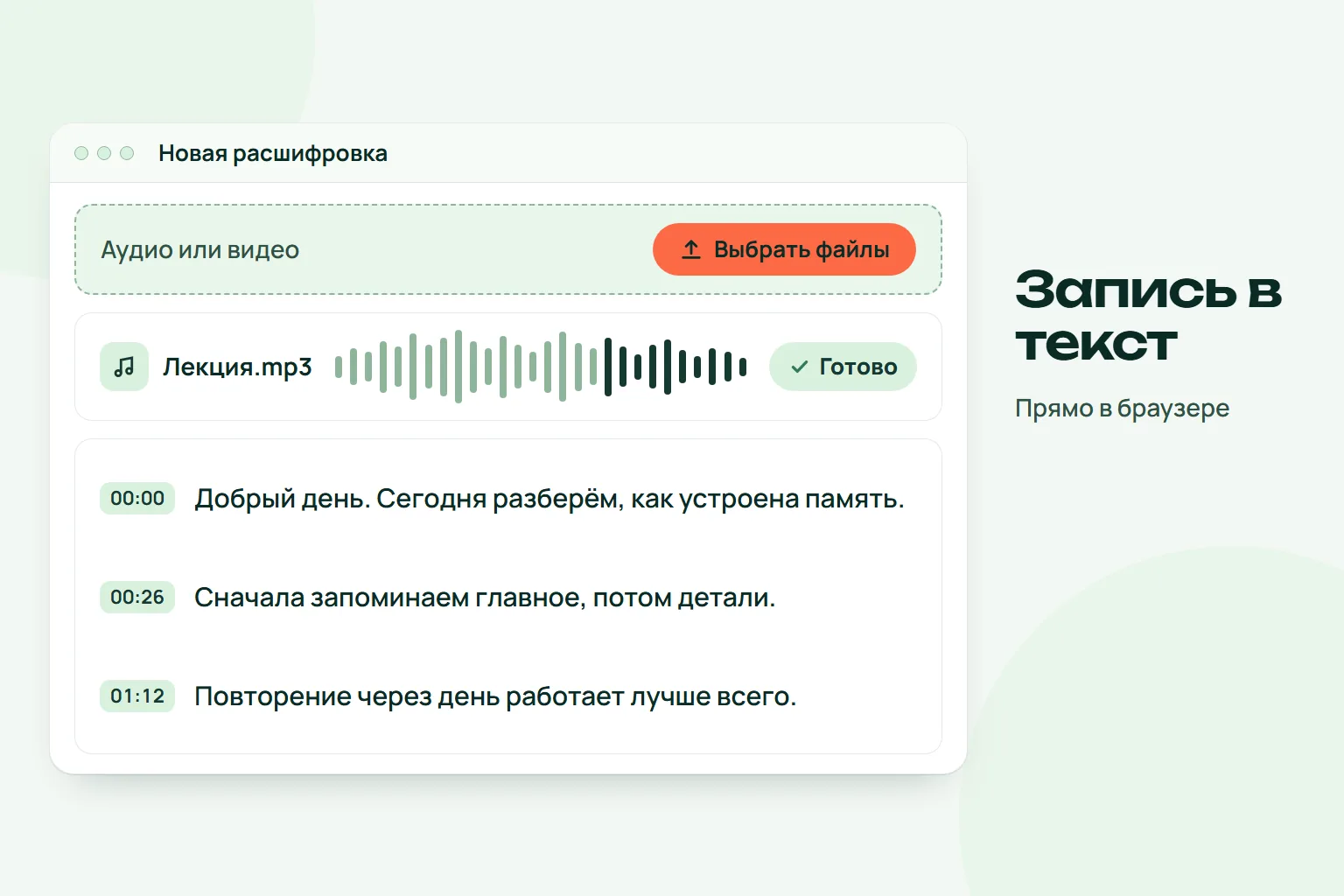
On the "Новая расшифровка" (New transcript) page you have two options:
- A file. Drag it into the large area or press "Выбрать файлы" (Choose files). You can pick several.
- A link. Paste the address into the link field and press "Расшифровать".
The maximum length per recording depends on your plan and is shown right in the upload area.
Step 3. Choose settings
The settings card next to the upload area has:
- Split by speakers. Labels who is talking: "Speaker 1", "Speaker 2". Paid plans only. You add real names by hand.
- Recording language. Russian, English or Auto. If the whole recording is in one language, choose it explicitly.
- Keep the recording for listening. If enabled, the audio stays in the dashboard for a few days so you can listen alongside the text and check doubtful spots.
The original file is deleted right after transcription. The text is kept until you delete it.
Step 4. Wait for the result
The recording appears in the queue and in your list on the left. You can close the page: when you return, the transcript is in the list marked as done.
Step 5. Work with the text
Open the finished transcript. The text tab shows the text with timestamps:
- Search. Find a word or name in the text.
- Timestamps. Click a time and the player starts from that spot, if you kept the audio.
- Edit text. Fix names and terms, then save.
- Copy all. Puts the whole text on your clipboard.
Step 6. Download files
The download block on the right offers:
- Word document (DOCX). For edits and printing.
- Text (TXT). Plain text.
- Subtitles (SRT). For video players and editors.
For summaries and the interactive digest see how to get a digest from a recording.
Tips for cleaner text
- Quiet room, microphone close: noise and echo cause more errors than hard words.
- Pick the language by hand unless the recording is mixed.
- Check complex names against the audio by timestamp.
- For long recordings, keep the audio so you can verify doubtful spots.
What the dashboard does not do
Transcription is automatic and can make mistakes, especially with noise, overlapping speech and strong accents. Check important quotes, numbers and names against the recording. It does not identify real speaker names, only "Speaker 1", "Speaker 2".
Try it
The free plan gives 3 transcripts a month, up to 120 minutes each. Paid plans and prices are in the dashboard under "Тарифы" (Plans). Prefer your phone? Do the same in the bot: the account and transcripts are shared.
Questions and answers
Do I need to install anything?
No. A browser is enough.
Which files work?
Audio and video: mp3, m4a, wav, ogg, opus, mp4, mov, mkv, webm, plus links to YouTube, VK, Rutube and Yandex.Disk.
How long does it take?
It depends on length and current load. You can close the page; the result stays in the list.
What happens to my recording?
The original file is deleted right after transcription. A listening copy is kept only if you enabled it, and it expires after a few days. The text stays until you delete it.
How do I remove a transcript?
Open it and press the delete button in the right column.
Will transcripts from the bot show up here?
Yes, if you sign in with Telegram: the account is shared.
Try it on your own recording
Send a voice message or a video to the bot and the text arrives right in the chat. The first minutes are free.
Transcribe in the bot